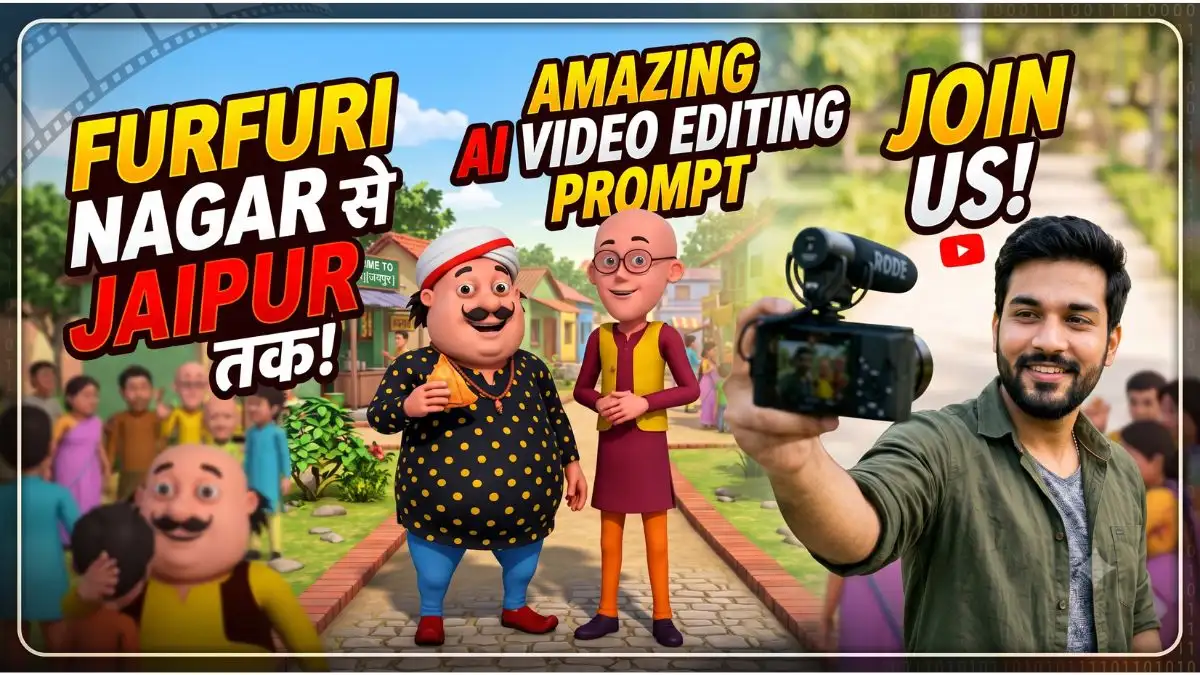
If you’ve been scrolling through Instagram Reels, YouTube Shorts, or Facebook Reels lately, you’ve probably seen the viral Motu Patlu AI video prompt. Creators are using AI to turn their photos into fun vlog-style videos with Motu and Patlu, making it one of the biggest AI video trends of 2026.
Hey friends! I tested this trend using different AI image and video tools, and my first few results weren’t great. The face didn’t match properly, lip sync looked off, and some videos felt too artificial. After trying multiple prompts and workflows, I finally found what actually works.
In this guide, I’m sharing the same Trending Motu Patlu AI Video Editing Prompt and workflow that gave me the most natural-looking results. If you’re trying this trend for the first time, this guide will help you create a much better video.
Why Is the Trending Motu Patlu AI Video Editing Prompt Going Viral?
The biggest reason is simple—it’s personal. Instead of watching someone else’s AI video, people get to see themselves alongside Motu and Patlu in fun vlog-style scenes, making the content instantly more engaging and shareable.
While testing this trend, I also noticed that videos featuring local streets, villages, city landmarks, or familiar locations often attract better engagement because they feel more relatable. That’s why so many creators are using the Trending Motu Patlu AI Video Editing Prompt to create videos that stand out on social media.
Trending Motu Patlu AI Image Prompt (Vlog Style)
Before generating the video, create a high-quality AI image. You can use ChatGPT, Gemini AI, or any reliable AI image generator. A better starting image usually produces a more natural final video.
Use the Vlog Style Image Prompt provided below.
In my experience, using an HD reference photo along with Face Lock instructions significantly improves the final output. For that reason, never remove the Face Reference section from the prompt.
Trending Motu Patlu AI Vlog Style Image Prompt
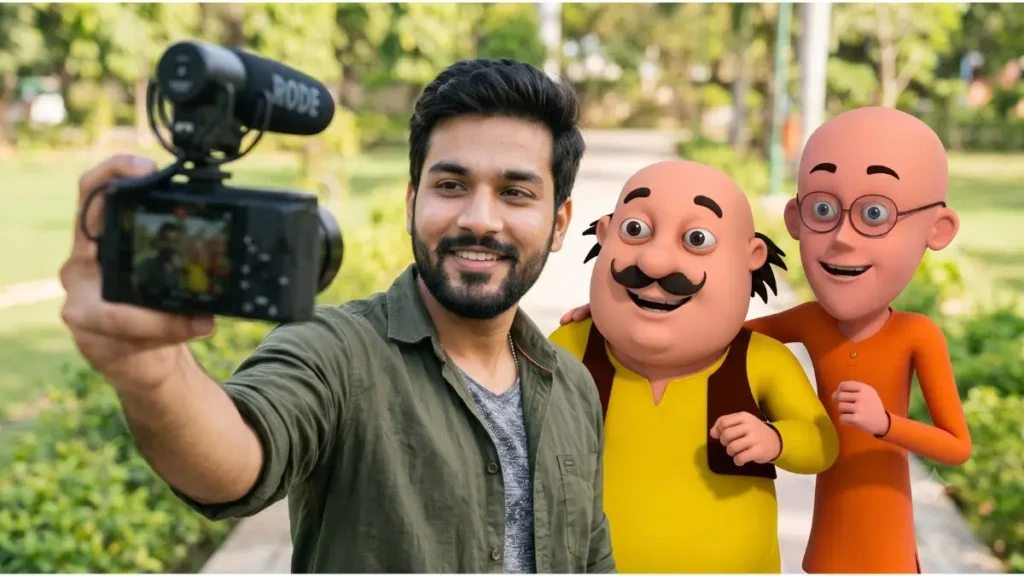
After the image is generated, carefully check whether the face matches the original photo. If it doesn’t, regenerate the image before creating the video.
Trending Motu Patlu AI Vlog Style Video Prompt
Once your AI image is ready, convert it into a video using the Video Prompt below. This prompt is designed specifically for selfie vlog-style animation.
Trending Motu Patlu AI Vlog Style Image Prompt
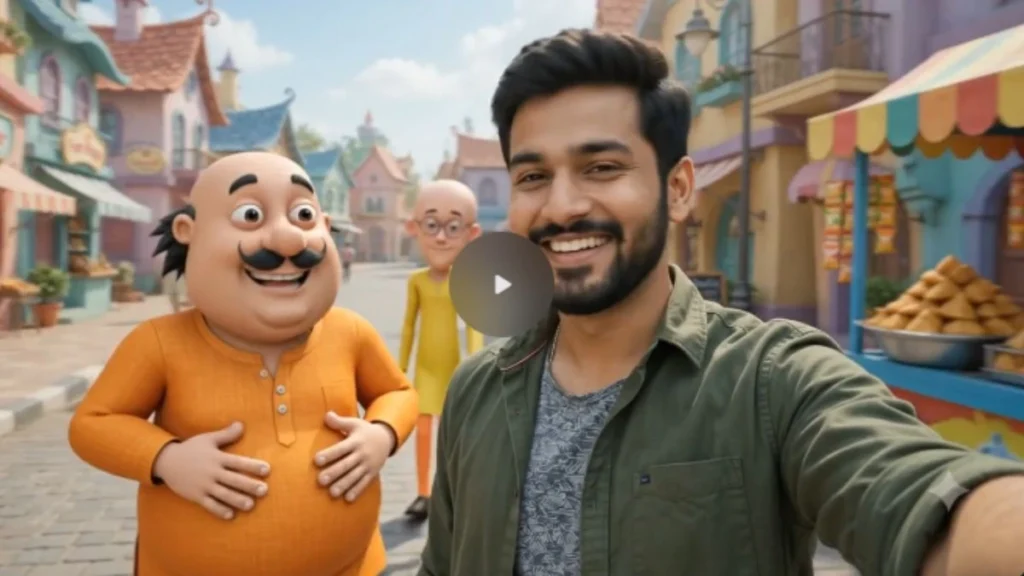
I tested this prompt on multiple AI video models. The most natural results came from using a clean reference image while keeping the Face Lock instructions exactly as written.
Open Gemini or click the red button provided above. Start a new chat and tap the + icon to select Create Video. Choose either Portrait (9:16) or Landscape (16:9) based on your needs. Upload your Motu Patlu AI image, copy the prompt by clicking View Prompt, paste it into the prompt box, and click Generate Video. Your AI video will be ready within a few minutes.
Motu Patlu City & Village Explore AI Video Prompt (Signboard Name Change Prompt)
If you want your AI video to display the name of your own village, town, or city on a signboard, first generate a customized image using the Motu Patlu City & Village Explore AI Image Prompt. This prompt changes only the signboard text while keeping the rest of the scene unchanged.
After generating the image, use it with the Video Prompt below.
From my experience, this workflow produces the most realistic results because the AI generates the video from the customized reference image.
Motu Patlu City & Village Explore AI Image Prompt
Trending Motu Patlu AI Vlog Style Image Prompt
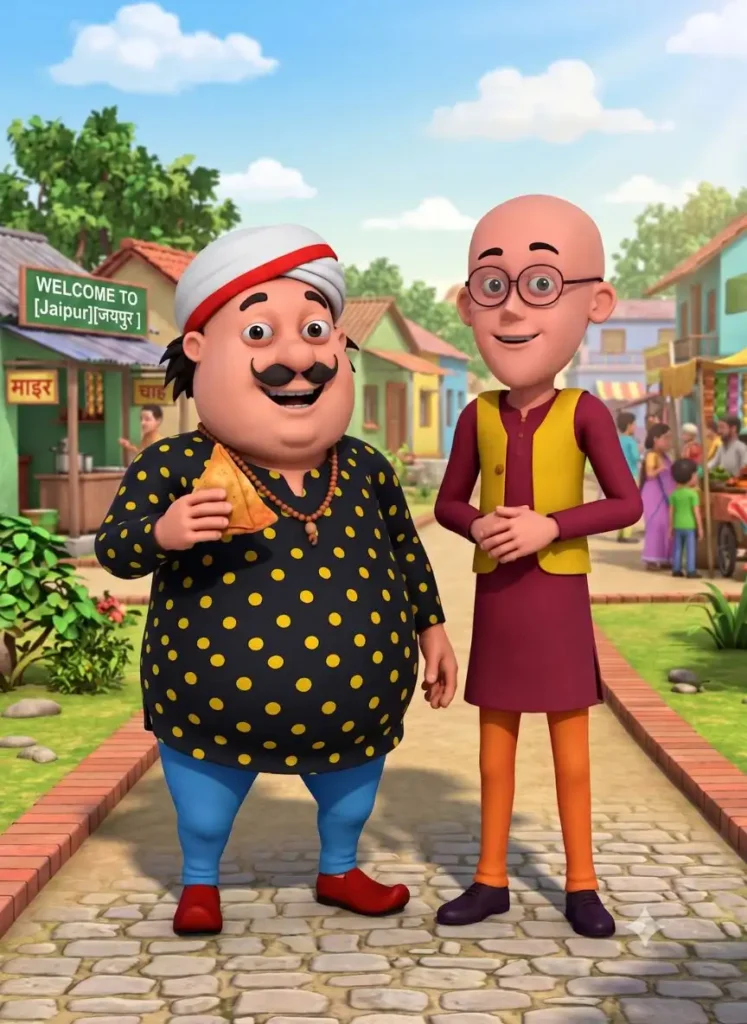
Note: Download the image, upload it to your preferred AI image generator, and paste the prompt. Replace CITY OR VILLAGE NAME with your own location. Everything else in the image remains unchanged except the signboard text.
Motu Patlu AI Video Prompt (City & Village Explore)
Create a 10-second ultra-realistic 3D animated selfie vlog using the uploaded image as the exact reference. Keep Motu, Patlu, their clothes, expressions, and the highway background unchanged. Add natural lip-sync, blinking, facial expressions, hand gestures, and slight handheld camera movement. Motu smiles, waves, and says: “हेलो दोस्तों,मैं मोटू हूँ। आज मैंगोवाघूमने आया हूँ। यहाँ का माहौल बहुत गरम है। आज मैंबाल जीचौक से गरमा-गरम समोसा खाऊंगा।” Now Patlu speaks: “दोस्तों,यहाँ जंतर-मंतर पर कोक्करोंच पार्टी के युवाओं ने धरना किया हुआ है। अगर मौका मिले,तो यहाँ ज़रूर आइए!” Add realistic highway ambience, passing vehicles, birds, light wind, cinematic lighting, smooth animation, ultra-realistic facial details, high-quality lip sync, natural body movements, professional cinematic camera motion, 4K quality, vertical 9:16.
How to Create a Motu Patlu AI Video in Flow AI
From my experience, if you’re looking for smoother animation, better lip sync, and more natural camera movement, Flow AI is a good option.
- Open Flow AI and sign in with your Gmail account.
- Click Create With Flow.
- Create a new project.
- Select the Video model.
- Choose the 9:16 aspect ratio.
- Upload your AI image.
- Paste the video prompt.
- Click Generate and wait for the video to finish.
How to Use the Same Prompt in Gemini AI
Open Gemini AI and select the Video or Image to Video option.
Upload the AI image created from the image prompt. Copy the video prompt and paste it into the prompt box, then click Generate.
The video may take a few minutes to process. If the first result doesn’t meet your expectations for face quality, lip sync, or animation, generate it again using the same prompt instead of modifying it. In my testing, using an HD reference image together with unchanged Face Lock instructions consistently produced more natural results.
Tips for Better Results
- Always use an HD reference photo.
- Never remove the Face Lock instructions.
- Finalize the AI image before generating the video.
- Use the 9:16 vertical ratio for Instagram Reels and YouTube Shorts.
- If you want to change the signboard, edit the image first and then create the video.
- Compare at least two or three generations before selecting the final version.
Frequently Asked Questions (FAQs)
1. Does this Motu Patlu AI Video Prompt work with all AI tools?
Yes. You can use this prompt with Gemini AI, ChatGPT Image Generation, Flow AI, and many other Image-to-Video AI tools. Since every AI model is different, the output may vary slightly.
2. What is the most important factor for getting better results?
In my experience, an HD-quality reference image and properly written Face Lock instructions make the biggest difference.
3. Can I replace Furfuri Nagar with my own village or city?
Yes. Use the Signboard Editing Prompt to change the location name before generating the video.
4. What should I do if the first video doesn’t look good?
Instead of changing the prompt, generate the video again using the same Trending Motu Patlu AI Video Editing Prompt. The second or third generation often produces smoother and more realistic results.
5. Is this AI video suitable for Instagram Reels and YouTube Shorts?
Yes. If you generate the video in the 9:16 vertical ratio, it is ready to upload on Instagram Reels, YouTube Shorts, and Facebook Reels.
Conclusion
If you want to create natural and viral Motu Patlu AI vlog-style videos, following the right workflow is essential. A high-quality reference image, proper Face Lock instructions, and the right video prompt work together to produce much better results.
In this guide, I’ve shared the same workflow that I personally tested across multiple AI tools. Now you can create your own Motu Patlu AI vlog, add your village or city name, and share your AI video on social media within minutes.
More Trending AI Photo Editing Prompts:-